Which layer's IP does the lookup page show?
When you open an IP lookup page, you see the egress address visible to that service for this request. If the service uses a trusted reverse proxy, it usually also parses the forwarded client address according to its own configuration. It may not equal your computer's network adapter address: home IPv4 networks typically use Network Address Translation (NAT), and upstream there may be another layer of NAT, a proxy, or a VPN. Record the "device address," "router WAN address," and "webpage observed value" separately, rather than lumping them together as your public IP.
Whether proxies and VPNs change the webpage egress depends on specific routing and split-tunneling rules. A browser proxy may only forward web requests, while a system VPN may carry only corporate network segments; full-tunnel configurations route all relevant internet traffic to the VPN gateway. Therefore, different applications, IPv4 and IPv6 connections on the same device may use different egress points. A webpage lookup alone cannot determine who assigned the address, whether it is dedicated, or whether the device uses a VPN; you must consider the actual active network configuration.
Private or shared addresses should normally be found in the local network adapter, modem, or router WAN status. A normal public internet lookup should not treat RFC 1918 or RFC 6598 addresses as a globally routable client egress; if the page shows such values, first verify whether it is local information or a forwarding configuration issue. Whether an address is public differs from its reputation: a routable address may have abuse records, while a private address cannot directly participate in public reputation comparisons. For details, see IP Reputation Check: Risk Scores, Blocklists and Proxy Tags.
Device, Router, and ISP: Four Layers of Address Relationships
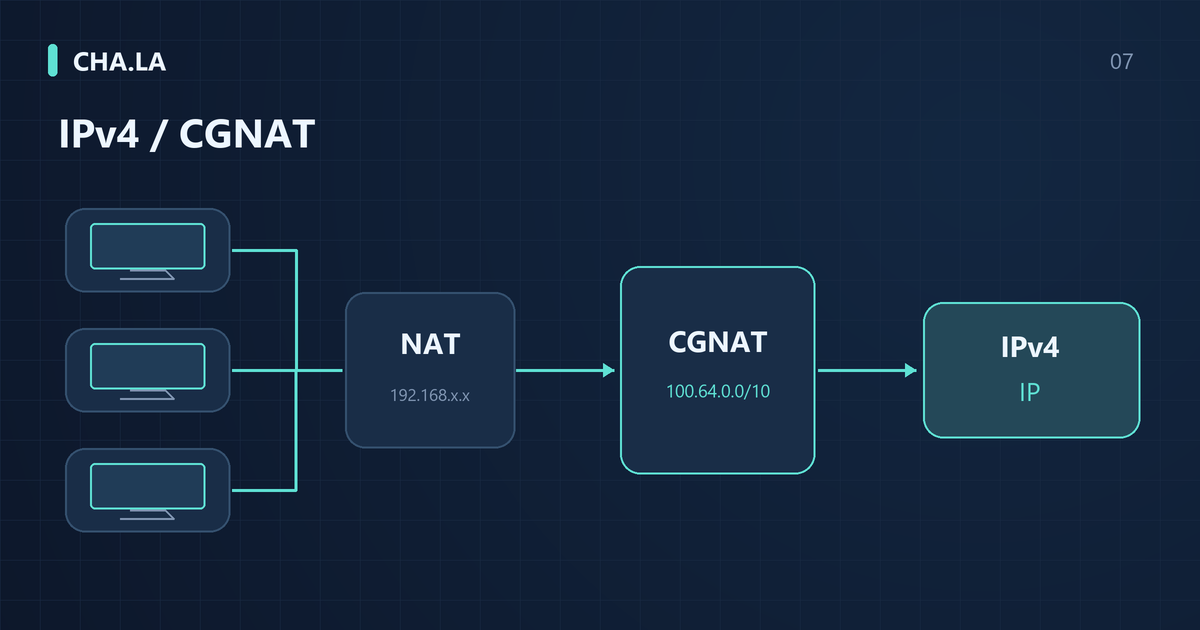
First, understand addresses at four locations. The first layer is the address used by the device on the LAN, such as 192.168.50.8. The second layer is the home router's WAN interface; it may receive a public address or a private address assigned by the upstream modem. The third layer is the ISP network; in CGNAT deployments, the user-side address is translated by the ISP and then communicates externally using a public address, and the user side may use 100.64.0.0/10. The fourth layer is the request source observed by the target service. If a proxy is involved, the target sees the proxy's egress.
Below is a clearly marked illustrative example of a home double-NAT scenario. Suppose an ISP configures the user's modem in routing mode, the modem's LAN address is 192.168.1.1, and the ISP assigns its WAN interface the public IP 203.0.113.10 (a placeholder address, not a real user address). The user then connects a wireless router; its WAN port obtains 192.168.1.100 from the modem, and its LAN address is 192.168.50.1. The user's phone receives the address 192.168.50.8. When the phone visits an IP lookup website, the packets first have their source address changed to 192.168.1.100 by the wireless router, then changed to 203.0.113.10 by the modem, and finally the server sees 203.0.113.10. The local LAN IP seen on the user's phone is 192.168.50.8, and the WAN IP seen in the router's admin page is 192.168.1.100; neither is a public address, but the final egress is a public address. This example only illustrates the order of address translation and does not represent any real user environment.
If the router WAN shows 100.64.0.2 and the webpage egress is a different globally routable IPv4 address, this is consistent with upstream address translation, but you still need to confirm the specific architecture with the ISP. If the WAN shows 192.168.1.2, it may be modem routing mode, a second router, or an enterprise upstream gateway; the value alone cannot tell you which device performed NAT. Recording the topology and the roles of each interface is more helpful for troubleshooting than just capturing a single address.
Precisely Identifying Private and Shared Address Spaces
RFC 1918 defines three private IPv4 ranges: 10.0.0.0/8, i.e., 10.0.0.0 to 10.255.255.255; 172.16.0.0/12, i.e., 172.16.0.0 to 172.31.255.255; and 192.168.0.0/16, i.e., 192.168.0.0 to 192.168.255.255. All IPv4 addresses starting with 10 are in the first range, but not all addresses starting with 172 or 192 are private. Being outside these three ranges does not automatically mean the address is usable on the public internet; you should also check other special-purpose address ranges.
RFC 6598 defines the shared address space 100.64.0.0/10, ranging from 100.64.0.0 to 100.127.255.255, for specific scenarios within service provider networks and not globally routable. A router WAN falling in this range is a significant clue of an upstream shared network, but it alone cannot prove exactly which type of CGNAT the ISP implements. Conversely, not seeing this range does not rule out upstream NAT, as the ISP's internal addressing plan may differ.
When judging, compare against the complete ranges; do not label all addresses starting with 100 as CGNAT. Shared addresses usually appear on the pre-translation side, while public lookups show the post-translation globally routable egress; these are not contradictory results. Also confirm whether the lookup goes through a proxy, uses the same WAN, and uses the same address family. Only by fixing these conditions can address differences become explanatory clues; whether your plan provides a directly assigned public IPv4 ultimately depends on ISP confirmation and the actual network configuration.
How to Compare the WAN Address with the Webpage Egress
Whenever possible, record the web egress IPv4 on the same device, at the same time, and on the same network, then compare it with the WAN IPv4 of the router that actually carries the request. Redialing, switching Wi-Fi, using dual WAN, or proxy-based traffic splitting can affect the comparison. IPv6 verification works differently: the endpoint usually has its own global IPv6 address, so you cannot require it to match the router's WAN IPv6. You should verify the source address used by the endpoint for this request, the prefix delegated by the ISP, and the expected route; temporary IPv6 addresses may also change over time.
On a home network, prefer checking the status page and existing topology rather than resetting the device to factory defaults just to view addresses. Users on enterprise or campus networks can pass endpoint query results to the network administrator, who can verify the egress and upstream translation. If a device has multiple interfaces, label the interface names and roles, distinguishing the ONT management address, router LAN address, WAN address, and VPN virtual interface address; otherwise, several individually correct values placed together may still lead to a wrong conclusion.
For the same IPv4 request, without a proxy, and with the correct WAN selected, the WAN and web egress are the same, which generally does not support the inference that "this path also passes through an additional CGNAT that changes the source IPv4." However, identical addresses do not guarantee static assignment, exclusive use, or the ability to accept inbound connections; ISP policies and host or router firewalls may still restrict access. Inbound capability should be tested from an independent external network against a service you manage, recording the protocol, port, and failure stage separately.
What other reasons can cause the WAN and egress to differ?
If the WAN address differs from the web egress, first consider the actual topology. When the ONT is in routing mode, the downstream router may obtain a private address from it, creating double NAT; a system VPN may also route web traffic through a remote gateway. Confirm the ONT operating mode, VPN split tunneling, and the interface actually carrying the request before deciding which layer causes the difference. Changes to bridging, dialing, or tunnel settings should be confirmed by the ISP or administrator based on network requirements; do not adjust the connection method merely to make two numbers identical.
Browser proxies can also change the web egress, while other applications on the same device may connect directly. Incognito windows usually do not bypass system proxies and cannot guarantee that all extensions are disabled; the browser configuration used for comparison must have its proxy and extension states confirmed. Enterprise security gateways, remote browsing services, and multi-egress scheduling can also cause differences. For managed devices, asking the administrator to check policies is usually more effective than disabling an enterprise tunnel yourself.
Layer-by-layer troubleshooting should proceed in order. First confirm that no VPN or proxy is enabled on the device, then check whether the router WAN address falls within RFC 1918 or RFC 6598 ranges. If the WAN is a private address, the ONT may still be in routing mode; if the WAN is 100.64.x.x, the ISP may be using CGNAT; if the WAN is a public address but the web egress differs, there may be a proxy or enterprise gateway. Do not draw conclusions from a single screenshot, because addresses can change dynamically and proxy software may start with the system. Keep observations from multiple points in time and compare them with network topology changes to improve judgment accuracy.
Verify IPv4 and IPv6 separately
IPv4 and IPv6 are usually deployed in parallel but have separate address allocation, routing, and firewall policies. An endpoint may use IPv4 through NAT while directly obtaining a global IPv6 address. Successful IPv6 access only indicates that this IPv6 path and service are available; IPv4 access failure may also involve DNS, routing, proxies, or server-side listening. CGNAT is especially relevant for IPv4 inbound connections without an established mapping, but it cannot be used to explain all IPv4 outbound failures.
Browser environment check can help observe the request egress and browser network behavior, but it cannot prove that an external host can actively connect to your IPv6 service. Inbound verification requires an actually listening service, corresponding firewall rules, and testing from an independent external network. Allow rules for the two protocols may differ, so "web pages can connect" and "others can connect in" should be accepted separately; do not claim inbound openness merely because a page displays a global IPv6 address.
When troubleshooting, record the targets, source addresses, and failure stages for IPv4 and IPv6 separately. If you suspect the path does not match proxy or VPN expectations, read WebRTC, DNS and IPv6 Leak Tests: How to Read the Results. WebRTC candidates reflect interface or egress hints the browser can collect; DNS tests typically observe the source of the recursive resolver when the test query reaches the authoritative server, not treating the resolved target IP of a domain as your egress. Disabling IPv6 may mask the symptom; first clarify exactly which path does not meet expectations.
How to analyze port mapping failures
When port mapping fails, first confirm that the local service is running and listening on the expected interface and port. If it is bound only to 127.0.0.1 or ::1, external devices cannot connect directly; you can bind it to the designated internal interface according to the service's needs and restrict access with host firewall rules. Changing the service to listen on all interfaces is not the only option and may increase exposure. First verify the application response from another device on the LAN, then troubleshoot the router and upstream network layer by layer.
If local listening and host firewall are both normal, next check the port forwarding rules on the router. Common mistakes include forwarding to the wrong internal IP, mismatched internal and external ports, or selecting TCP when the service actually uses UDP. Some routers also require a separate firewall rule to allow that port and a restart for rules to take effect. At this point, test whether the service is reachable from another machine on the LAN to isolate router configuration issues.
If the router configuration is correct but inbound connections still fail, compare the WAN IPv4 with the web egress and verify upstream NAT and ISP policies. TCP connection test can provide external observation within the public targets and port ranges allowed by the tool; if the input is rejected by tool policy, that is not evidence of target connection failure. TCP testing also cannot substitute for UDP service verification. When external tests fail, preserve the original reason; do not lump everything together as CGNAT.
If external tests show the port is unreachable, also consider whether the ISP blocks common inbound ports such as 80, 25, 445, and others. Some ISPs block all inbound connections by default unless the user applies for a public IP or specific port allowances. In that case, contact the ISP to confirm the policy rather than repeatedly modifying local settings. The troubleshooting order can be organized as: local listening, host firewall, router forwarding, upstream NAT, ISP restrictions—changing only one variable at each step to accurately identify the problem.
How shared egress affects CAPTCHAs and IP reputation
When using a shared egress IP, the behavior of other users can affect the reputation of that address, thereby triggering more CAPTCHAs or access restrictions. It is necessary to distinguish between address-level observations and the specific user. Address-level observations can only indicate that a given IP has previously been associated with automated requests or anomalous traffic; they cannot determine who originated them, nor prove that the current user is malicious. Under carrier-grade NAT (CGNAT), hundreds or even more users may share a single IPv4 address, and any one user's anomaly may be recorded against that address by websites.
Google's unusual traffic help page explains that automated queries from other users on a shared network or VPN may trigger the unusual traffic notice. This is a possible cause; it does not mean the notice can be used to identify which user or program sent the requests, nor to assert that the egress has been placed on a public blacklist. You should keep the exact error and occurrence time, and follow IP Blocklists and Repeated CAPTCHAs: Troubleshooting Guide to separately check the network, browser, and target website rules.
A shared IP does not inherently mean insecurity, nor does it indicate user malice. Many organizations use CGNAT to conserve IPv4 addresses, which is standard network engineering practice. Security assessment should be based on specific traffic and sessions, not on a shared address. If you contact a website or ISP regarding CAPTCHA issues, you can explain that you are in a shared egress environment and provide observable access times and behavioral evidence, rather than asking them to 'clean' the entire IP, because cleaning may mask genuine anomalies.
For website operators, relying solely on the reputation of a single IP for decisions can easily cause collateral damage. A more reasonable approach is to combine multiple signals such as user agent, TLS fingerprint, and behavioral patterns, and to provide additional verification methods for shared egress users, such as email or SMS codes. When ordinary users experience an increase in CAPTCHAs, they can try changing their network environment or report the egress IP range and access period to the website, but should not use evasion tools to bypass access controls.
What to write in a ticket to your ISP
When submitting a ticket to your ISP, the more complete the information, the faster the processing. You need to provide the exact time zone and time, such as the specific date and time range in UTC+8, to help the ISP match logs. Also include the IP address shown on the router's WAN interface; if the router's WAN is not a public address, state that truthfully. The externally observed egress IP can be obtained from query websites; listing both allows quick determination of whether intermediate NAT is present.
If both IPv4 and IPv6 are in use, they must be described separately. Many mobile networks or home broadband connections have enabled IPv6, but IPv4 may still traverse CGNAT. When describing the problem, do not just say 'cannot access'; instead, specify the required inbound protocol, such as TCP port 443 for HTTPS or UDP port 51820 for WireGuard. Also describe the current topology, such as whether the optical modem is in bridge or router mode, the router brand and model, and whether a second-level router is involved.
In a ticket, you should not ask the ISP to 'clean' the IP from a blacklist unless you have concrete evidence that the address has been incorrectly flagged. More appropriate questions are: Does the current plan provide a public IPv4 address? Are inbound connections allowed? If IPv4 is unavailable, is IPv6 inbound provided? These questions directly relate to network capability, not reputation. Sensitive logs, such as full traffic records or access credentials, need not be proactively provided, but if the ISP requires further investigation, you may provide sanitized logs under the principle of least privilege.
If the ISP asks for evidence, you can organize a timeline: when port mapping was configured, from which external network you tested, what testing tools were used, and what results were obtained. This evidence should remain unaltered; do not modify screenshots or outputs. When following up on the ticket, record the time of each communication, the support agent's ID, and the conclusions, to form a reviewable record. Clearly stating the expected resolution and the next-step timeline can also improve processing efficiency.
How home users and developers should choose
When home users need remote access to devices they manage, they should first confirm whether their plan supports public IPv4 or IPv6 inbound, then choose a suitable solution. If there is no direct inbound capability, they can evaluate authenticated reverse tunnels or relay services, verifying access control, maintenance methods, cost, and availability, and comply with the rules of their network. Whether such a solution is needed depends on business goals; one should not treat 'must have public IPv4' as a prerequisite for all remote access.
Regarding public IP and port reachability, home users often have a misconception: they think that as long as the router's WAN address is public, all ports can be accessed from the Internet. In reality, many residential broadband services, even when assigning public IPv4, block common service ports at the carrier's edge devices. Moreover, dynamic public IPs may change, so remote access also requires dynamic DNS. If access is only temporary, using vendor-provided remote management or authorized relay services is more reliable.
When developers perform Internet service testing, they must not treat successful outbound access from the local machine as inbound acceptance from the Internet. Successful outbound access from the local machine through NAT or firewall only indicates that the outbound path is clear; it does not prove that external parties can actively connect to the local machine. For example, if a web service runs on localhost and successfully accesses an external API via curl, that does not prove external users can access that web service. You need to actively test from another machine on a different network or use an external TCP checking tool.
Developers should also verify port publishing among containers, virtual machines, and the host. A service working inside a container does not mean the host has opened that port on the expected interface; accessibility on the host's loopback address does not mean it is reachable from the LAN or the Internet. Final acceptance should specify the observation point and application results: TCP services must complete connection and expected interaction; UDP services must send protocol-compliant requests and check responses. You cannot conclude 'TCP established' from UDP without a connection handshake.
Three common Q&As
Is a public IP fixed? It depends on the ISP and plan. Home broadband typically uses dynamic addresses; even if public IPv4 is assigned, it may change upon lease expiration, re-dialing, or device reboot. Enterprise dedicated lines or fixed-IP plans can provide static addresses, but usually at additional cost. IPv6 addresses are typically delegated via prefix; if the ISP's prefix remains unchanged, the device address may be stable for some time, but permanence is not guaranteed. Do not assume the address is fixed; remote services still require dynamic DNS or periodic configuration updates.
Does rebooting the router always change the address? Not necessarily. Address changes depend on DHCP lease duration, the ISP's address pool policy, and authentication method. Sometimes the address stays the same after reboot, sometimes it changes; there is no universal pattern. In a CGNAT environment, a reboot may change the ISP's internal mapping rather than the public egress address. If you need to determine whether the current egress has changed, record the egress IP using multiple independent query services before and after reboot, ensuring the time zone and network environment remain unchanged.
Multiple users sharing a public IP does not automatically mean they can access each other, nor does it constitute proof of security isolation. Actual isolation depends on access network configuration, access controls, and device firewalls; NAT should not be treated as a complete security boundary. A shared egress may create reputation correlation, causing normal users to encounter CAPTCHAs or restrictions together, but the specific impact depends on the destination website's policies. Connectivity, address reputation, and device security should be evaluated separately, avoiding summarizing all issues with a single "shared" label.
Create a reviewable record
When troubleshooting public IP and port reachability issues, records should support subsequent review. When creating a timeline, use a schematic approach: for example, on a given day at 10:00 configure router port forwarding, at 10:05 test TCP port 8443 from an external network using a testing tool and it fails; at 10:10 modify the host firewall, at 10:15 test again and it still fails. Such a record clearly shows each action and result. Do not omit failed operations, because failures also help eliminate variables.
Change only one variable at a time and record before and after results; adjusting firewall and router rules simultaneously makes it difficult to determine the cause. You may save status pages, error text, test times, and egress results; when providing materials to others, remove irrelevant information such as account credentials and tokens. To understand address types, sources, and observation boundaries, you can read this site's Data sources and methodology. The key to recordkeeping is enabling the next troubleshooter to reproduce conditions, not piling up screenshots that cannot be explained.
Shared IP or proxy detection may produce false positives; for example, a normal home network may be flagged as VPN or proxy due to a shared egress. In such cases, collect the egress IP, query time, and detection platform, and record the differences in judgments across multiple platforms. Do not rely on only one blacklist or detection service; some platforms are not friendly to CGNAT ranges. For related false positive cases and troubleshooting directions, see IP Flagged as a VPN or Proxy? How to Check a False Positive, which explains how to distinguish address-level flags from actual proxy behavior.
When the troubleshooting record is sufficiently complete but the problem remains unsolved, set clear stopping conditions. For example: local listening and firewall have been modified, router rules are confirmed correct, tests from two different external networks both fail, and the ISP replies that there is no inbound capability. At this point, the next step should be to request a public address from the ISP or adopt an authorized relay solution, rather than continuing to guess or make changes. Afterward, archive all records, mark the conclusion as "unable to establish inbound connection, cause points to ISP policy," and attach the evidence chain.